
How to Fix the “Missing a Temporary Folder” Error in WordPress

Is your WordPress site showing ‘Missing a temporary folder’ error?
This folder error prevents you from uploading any files in WordPress, so you won’t be able to upload any images or install any plugins.
No worries, this is a common WordPress error and you can fix it easily. I’ll show you how to troubleshoot it in this article!
Let’s get started!
Try The Ultimate All-in-one WordPress Management Tool
And manage your WordPress sites like a pro
WP Umbrella for free
What is the Missing a Temporary Folder Error?
This error prevents you from uploading images, updating plugins and themes, or updating the WordPress core.
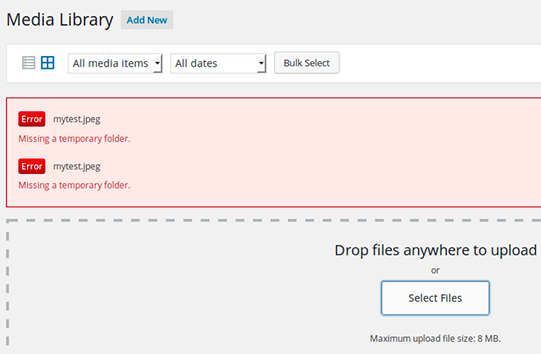
Your WordPress website security might be at stake, so I’ll show you how to fix this error.
Let’s get started with the roots of the problem.
Why Does the Missing Temporary Folder Error Occur In WordPress?
The “Missing temporary folder” error might appear on your site if a PHP setting in your WordPress hosting environment is incorrect.
This PHP setting allows you to define a temporary folder where WordPress apps store temporary data. This temporary data is stored there before being saved elsewhere.
This temporary folder thus needs to be accessed when WordPress uploads or installs or updates a plugin or the WordPress core.
For example, a plugin will first get stored in a temporary folder before WordPress creates a new folder for them in the /wp-content folder and stores them permanently.
When WordPress cannot access your server’s temporary folder, the message “Missing Temporary Directory” appears.
Here are some tips on how to fix this error now that you know why it appears!
How To Fix The Missing Temporary Folder Error
Warning: back up your website before making any changes to server files in order to fix this error.
The process for resolving this error is to edit WordPress’ wp-config.php file.
Step 1: Connect to your website using an FTP client, CPanel or your favorite File Manager.

Step 2: Look for the wp-config.php file and edit it.
Your website’s root folder usually contains the wp-config.php file, as well as other folders, such as /wp-content/.

Once you have located the wp-config.php file, make a copy of it, and start to edit it.

Copy paste the following code to the file before the line that says `That’s all, stop editing! Happy blogging’.
define('WP_TEMP_DIR', dirname(__FILE__) . '/wp-content/temp/');In my example, le code needs to be added on line 72.
Now save your changes and upload the wp-config.php file back yo your website.!
Step 3: do yo /wp-content/folder and create a new folder named “Temp”

Next, you need to go to /wp-content folder and make a new folder. The new folder needs to be called Temp.
It’s now time to go to your WordPress admin area and try uploading an image. Magical, isn’t it?!
Nota bene: You should check the wp-content folder permissions if the above method doesn’t work.
Final Thoughts
Troubleshooting this WordPress folder error is not difficult. However, the issue might persist.
Please contact the technical support team at your web hosting provider in such a situation
Most of the time, this error occurs due to poor web hosting configurations and management. Consider moving your website to a managed WordPress hosting platform if you want to prevent such problems in the future.